Time tracking that ties to the task
Entries attach to tasks, which is what lets you compare time spent against what a job was priced at.
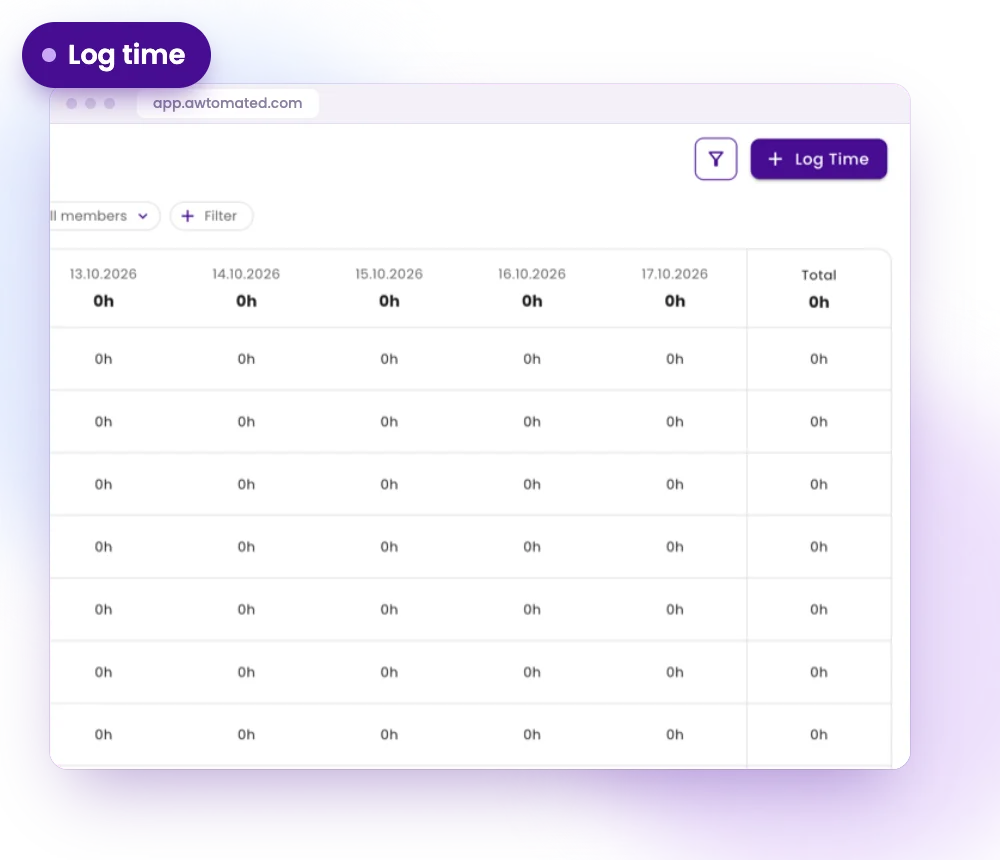
Log time in seconds
Choose the task, enter the hours and the date, and mark whether the time is billable.
- Log Time on any task
- 6h, 1h 30m or a start and end
- Billable or internal on every entry
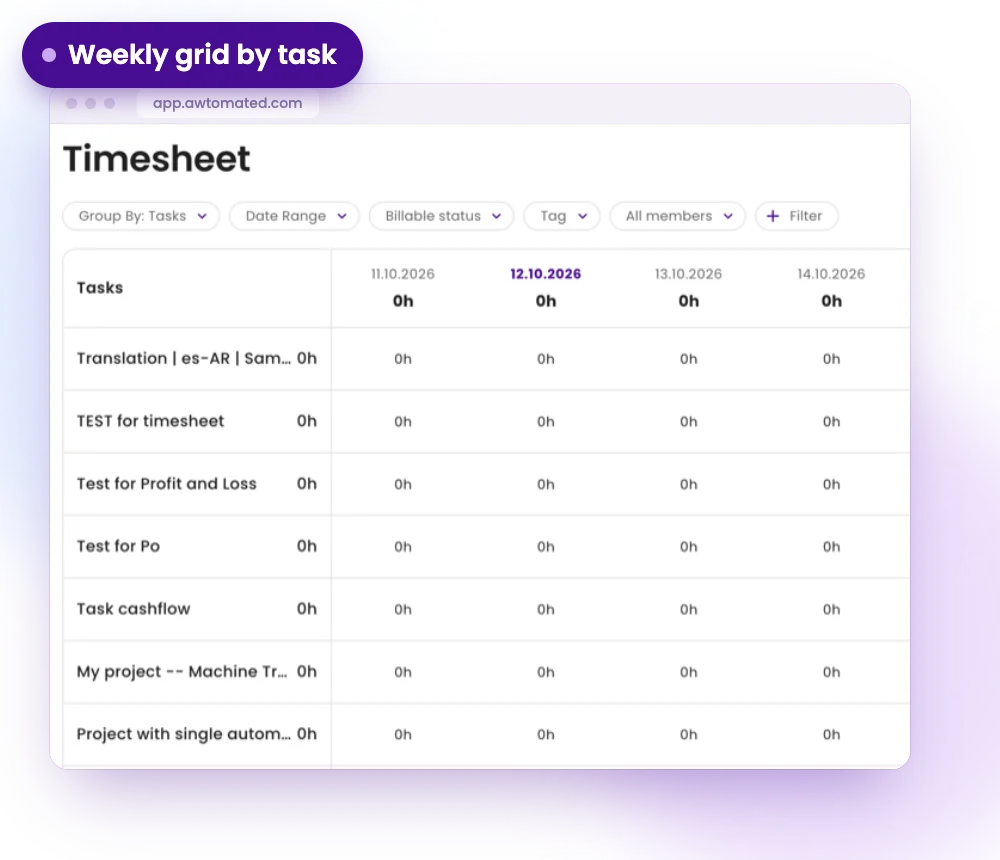
A weekly grid by task
See the week at a glance, with hours per task per day and a running total in the final column.
- Hours per task per day
- A running total per row
- Grouped by task
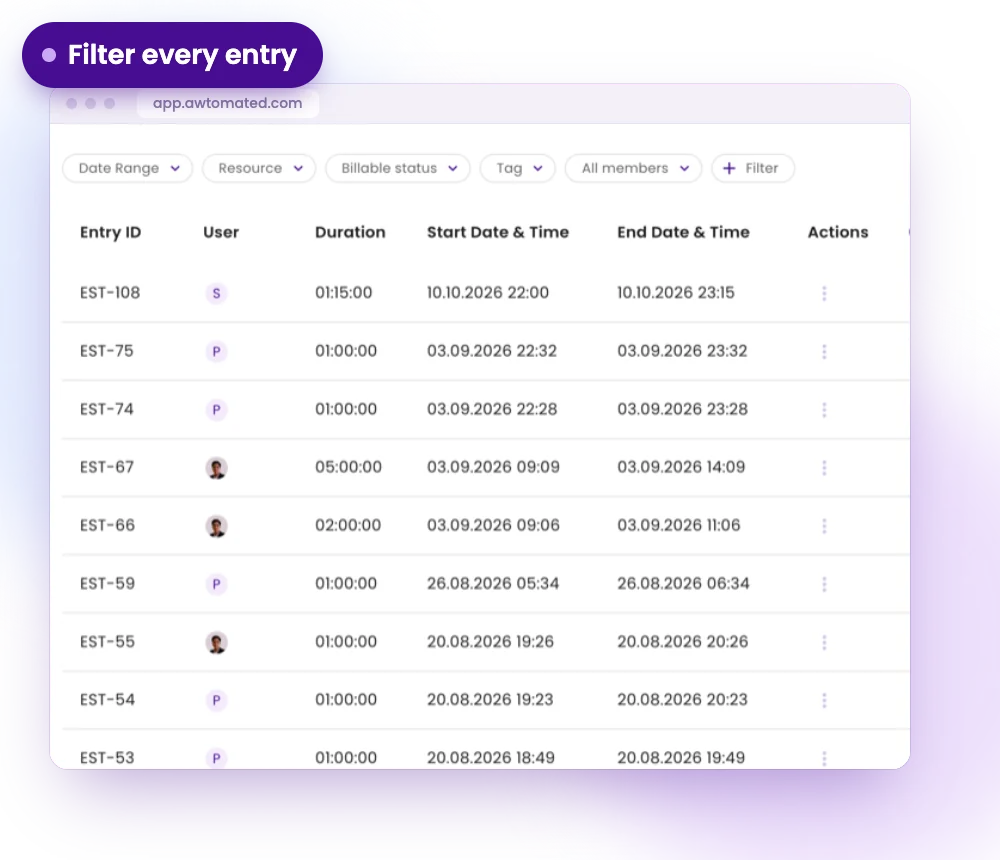
Entries you can filter
Every logged entry sits in a list with the project and task it belongs to.
- Filter by date range, resource, billable status or tag
- Separate chargeable time from internal time
- Compare logged hours with what the job was priced at
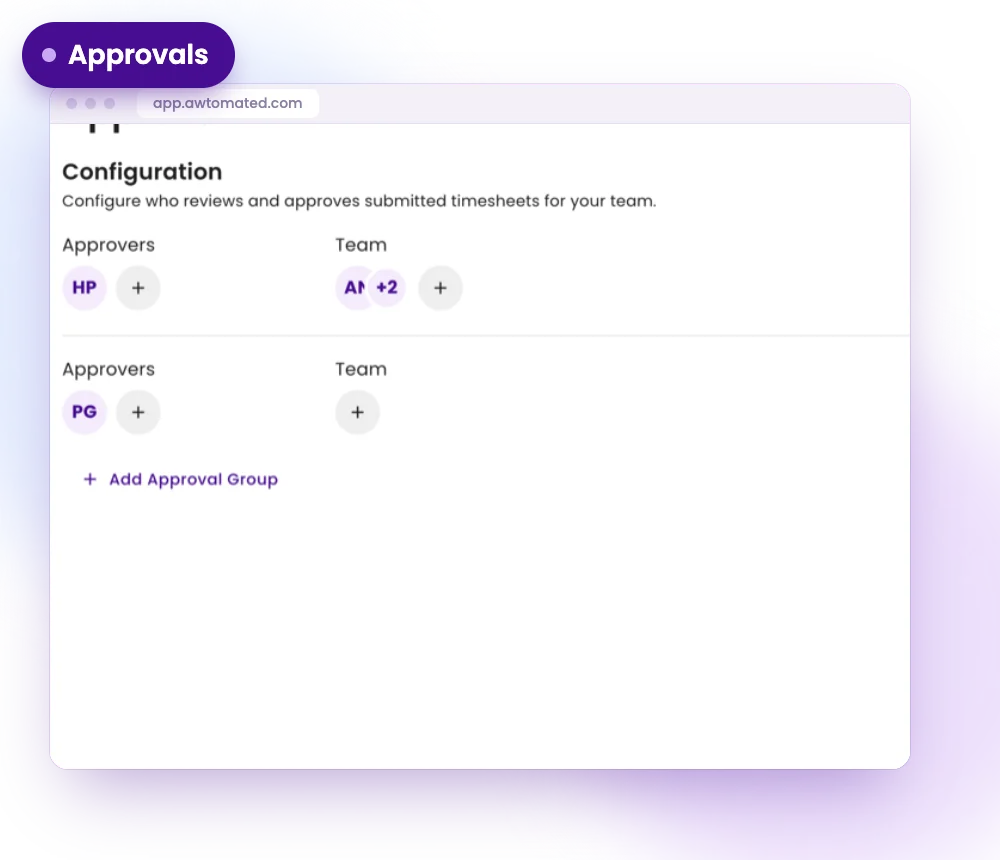
Approvals
Send timesheets for sign-off. Who approves them is set in the settings.
- A queue of timesheets waiting for approval
- Choose your timesheet approvers
- Clear status on every submission
Timesheet for Every Kind of Agency
For Project Managers
See where time goes on every task and spot jobs that take longer than planned.
- Time logged on the task itself
- Weekly view per person
- Filters by tag and member
For Finance Teams
Separate chargeable time from overhead before judging a job’s margin.
- Billable status on every entry
- Approvals before time is counted
- Hours next to what the job was priced at
For Agency Owners
Understand the real cost of the work, not only what vendors were paid.
- Time against projects and tasks
- Approved timesheets only
- A clearer view of profitability
Integrations & Compatibility
Works with your stack. No switching tools


Have a question?
We are here to answer.
What can I log time against?
You log time against tasks, which belong to projects. That is what lets you compare time spent with what a job was priced at.
Can I separate billable and internal time?
Yes. Mark each entry as billable or internal and filter by billable status whenever you compare hours with a project’s price.
Who approves timesheets?
The approvers you choose in the settings. Submitted timesheets wait in an approvals queue until they are signed off.
Which time formats can I type?
You can type hours such as 6h, a mix such as 1h 30m, or enter a start and an end time.
