A file store built into your workflow
Drive is the workspace’s file store, kept alongside the work rather than in email, with folders you can organise the way your clients do.
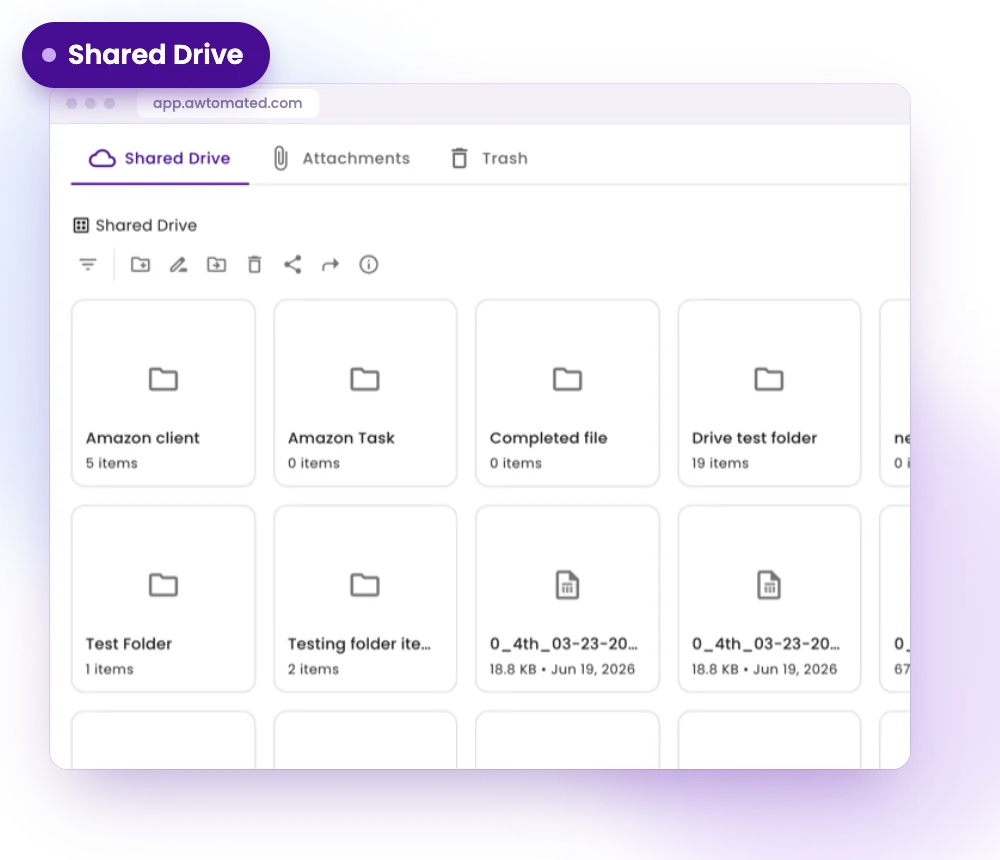
Shared Drive for the whole team
Keep files that belong to the team in one place, with a folder for every client and a Trash for deleted items.
- A folder for every client
- Files shared across the workspace
- Trash for deleted items
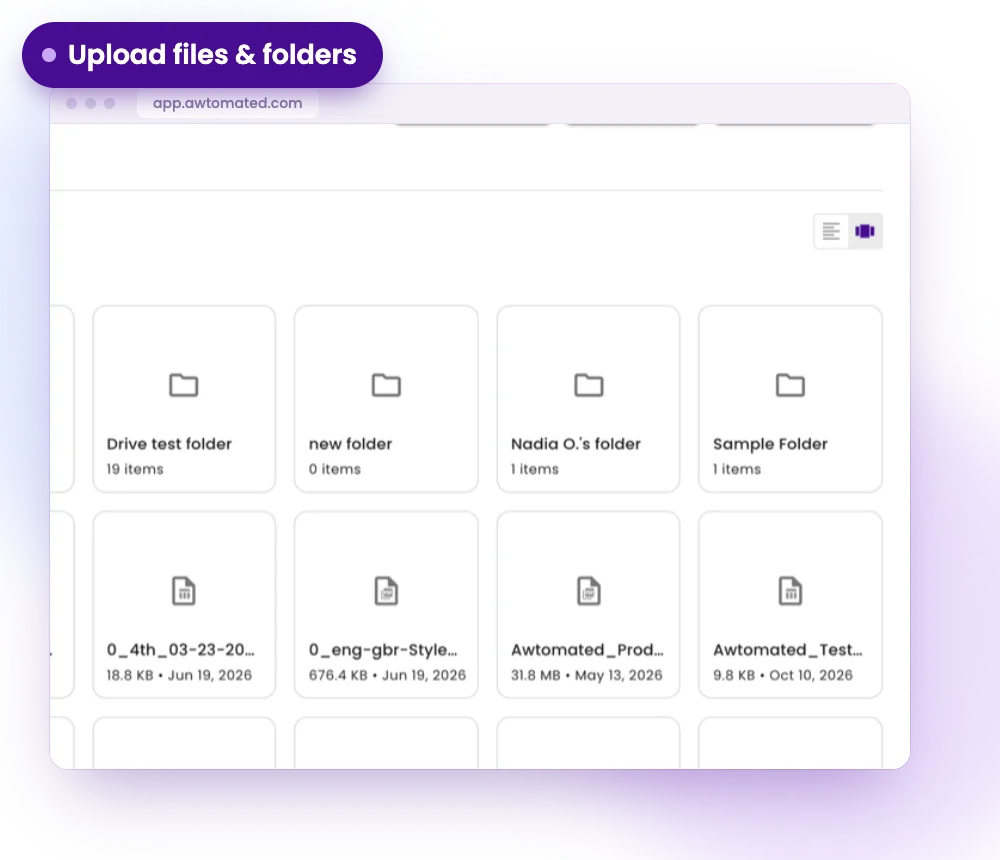
Upload files and folders
Upload one or more files, or an entire folder with its structure intact, and keep client folders in order.
- Upload File and Upload Folder
- Add a new folder anywhere
- Folder structure preserved
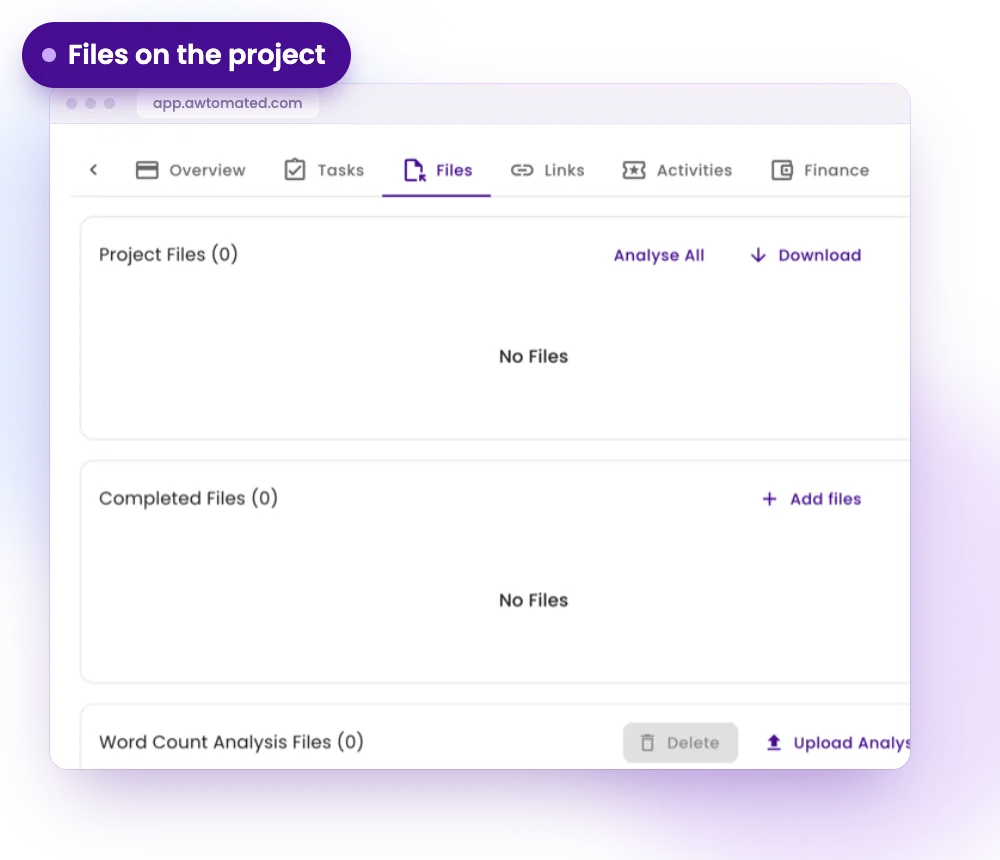
Files attached to the work
Add a Drive tab to a project or task and the files stay with the record. Attachments collects files added to records elsewhere in the app.
- A Drive tab on projects and tasks
- Always available on companies, contacts, deals and vendors
- Kept separate from the client and vendor portals
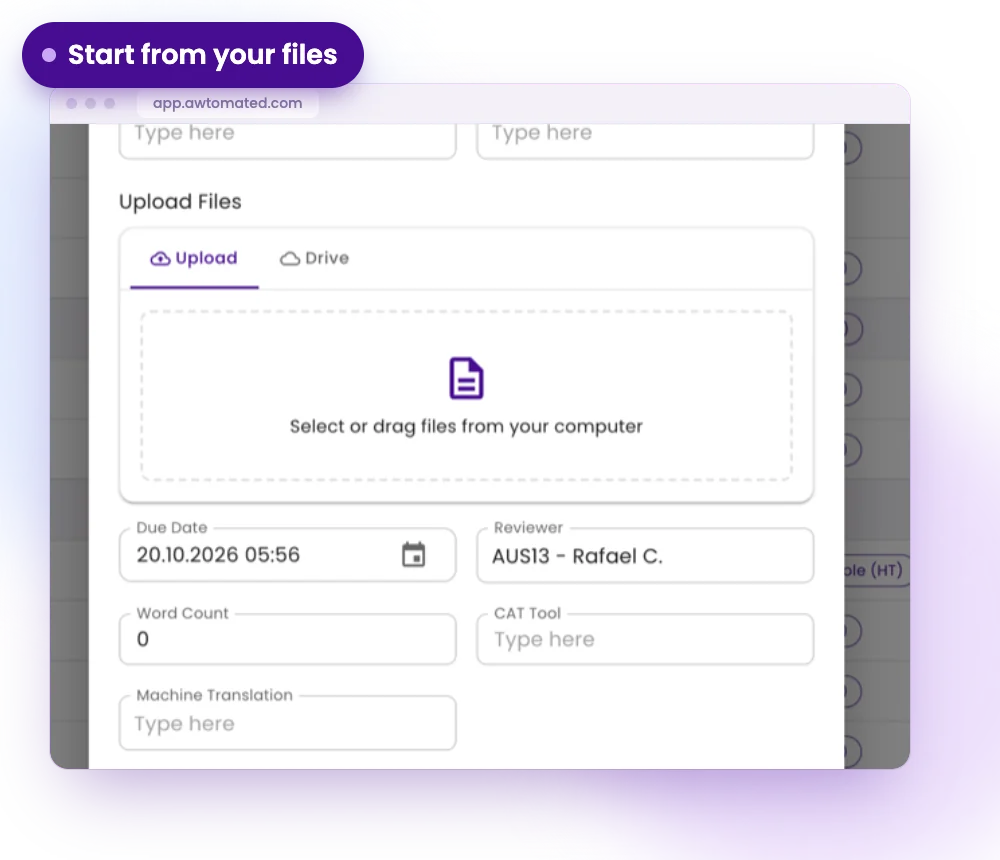
Start a project from your files
Select files in the Drive and create a project from them, so the work starts where the files already are.
- Create a project from files
- Source files ready on the project
- No copying between folders
Drive for Every Kind of Team
For Project Managers
Find the right file in seconds instead of searching email threads.
- Client folders in order
- Files attached to the task they belong to
- Start a project from uploaded files
For Account Managers
Keep contracts, style guides and reference material with the client.
- A Drive tab on every company and contact
- Shared files for the whole team
- No separate file tool to maintain
For Operations Leads
Give the team one place for files and keep client material out of the portals.
- One shared drive for the workspace
- Drive tabs separate from portals
- Trash before anything is lost for good
Integrations & Compatibility
Works with your stack. No switching tools


Have a question?
We are here to answer.
What is Drive in Awtomated?
Drive is the workspace’s file store: source documents, style guides, reference material and deliverables, kept alongside the work.
Do clients and vendors see my Drive files?
No. The Drive tab is not shown in the client or vendor portal.
Can I upload a whole folder?
Yes. Upload a folder from your computer and its structure stays intact, or add files one by one.
Can I create a project from files?
Yes. Select files in the Drive and create a project from them.
